Skip to content
Do not create multi-accounts, you will be blocked!

Wiermar and Ivanogrod 1.0.0

(7 reviews)

2 Screenshots

( Wiermar
This detailed WW1 RP map has some great architecture and stunning bunkers to explore. Run your RP with this generic Military Base, Town, Raid Map, and Port. Its all you need!

There are roads, a train station, bunkers, a port, a military base and another headquarters, raid area and much more!

There are cars, scripts, uniforms, teams and all you need!)


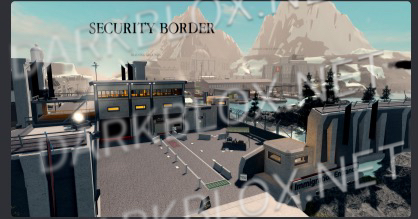
( Ivanograd Highly detailed Imperial Russian Border & Battlefield map, packed with stunning scenery and insane attention to detail!

This large scale map has everything you need for Border Papers Please roleplay and full military operations.

Military Headquarters with training grounds, interactive menus, advanced scripts, and FULL UNIFORMS for the Army, Police, Headquarters, Allies, and Intelligence!

Includes a dedicated raider spawn and a massive battlefield featuring multiple capture zones, bridges, bunkers, and trenches for intense trench warfare combat.)

User Feedback

You may only provide a review once you have downloaded the file.

   1 of 1 member found this review helpful 1 / 1 member

the map have a virus

   1 of 1 member found this review helpful 1 / 1 member

WW1 russian is really good, 5/5

Response from the author:

W


Cant even open the port map on roblox - it comes auto with an error, other map is pretty good tho

Response from the author:

thats wierd that it gives a error i wouldent know what it would mean tbh but ill vind what cousing the error if i can vind it


port map is horrible but the other one makes up for it

   1 of 1 member found this review helpful 1 / 1 member

Big and nice map 10/10

   1 of 1 member found this review helpful 1 / 1 member

Nice Maps

Other files from arme


Powered by darkblox.net

Account

Navigation

Search

Search

Configure browser push notifications

Chrome (Android)
  1. Tap the lock icon next to the address bar.
  2. Tap Permissions → Notifications.
  3. Adjust your preference.
Chrome (Desktop)
  1. Click the padlock icon in the address bar.
  2. Select Site settings.
  3. Find Notifications and adjust your preference.